> ## Documentation Index
> Fetch the complete documentation index at: https://superwhisper.com/docs/llms.txt
> Use this file to discover all available pages before exploring further.
# Report an Issue
> Learn how to get help when Superwhisper isn't working as expected
## Overview
This guide outlines the essential information needed to report issues effectively, ensuring quick and accurate solutions for any challenges you encounter with Superwhisper.
For quick support, reach out at [support@superwhisper.com](mailto:support@superwhisper.com). You can also share your issue in [Superwhisper's Discord server](https://discord.gg/tF98XvJNvB), under the appropriate channel. While our Discord community often provide helpful advice, email support typically offers the fastest path to resolving your issue.
## Enable Error Reporting
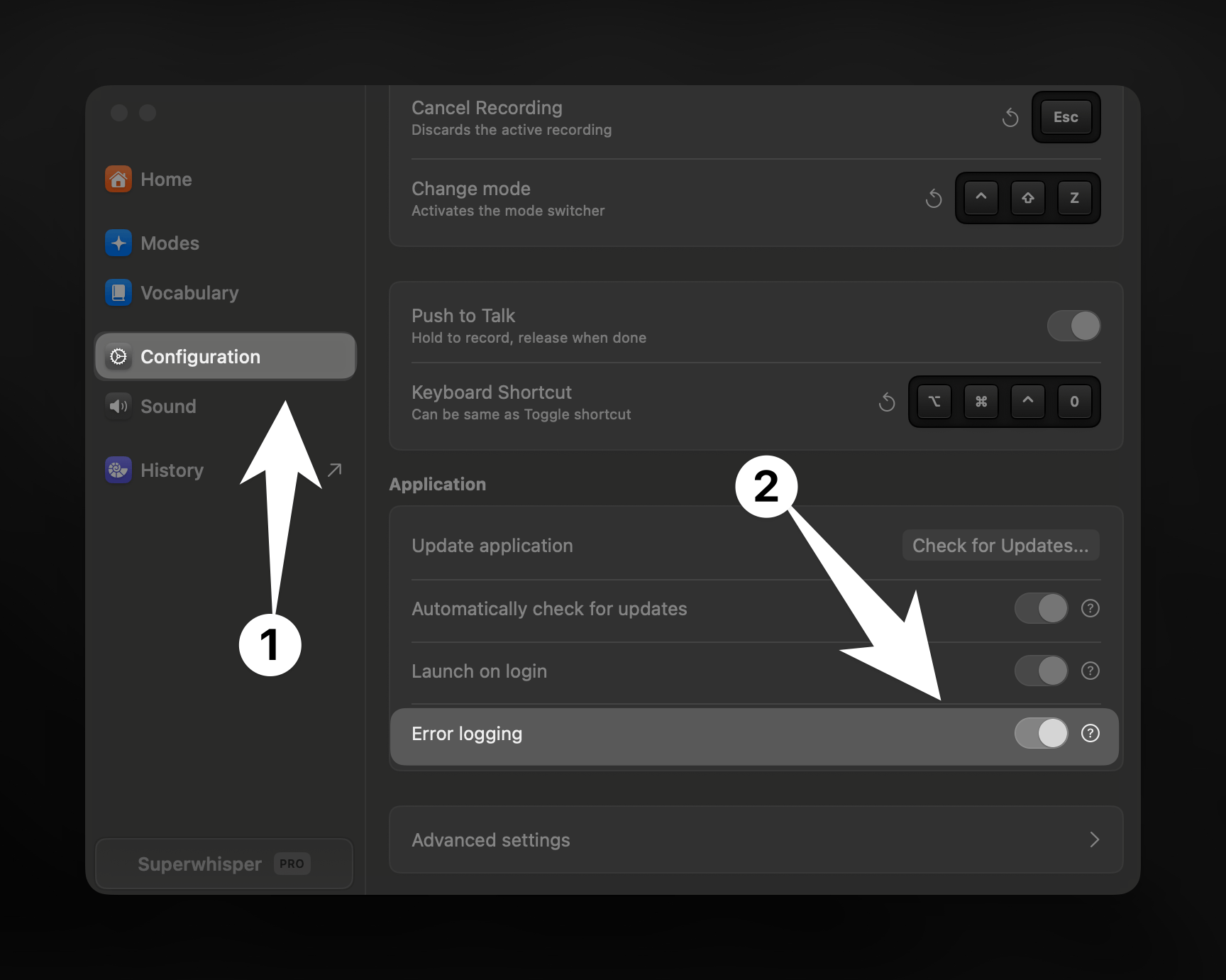
Navigate to the configuration page in Superwhisper settings
Locate and enable the error log toggle switch
 ## Reporting Through History
The most effective way to report issues related to recordings, is directly through Superwhisper's history.
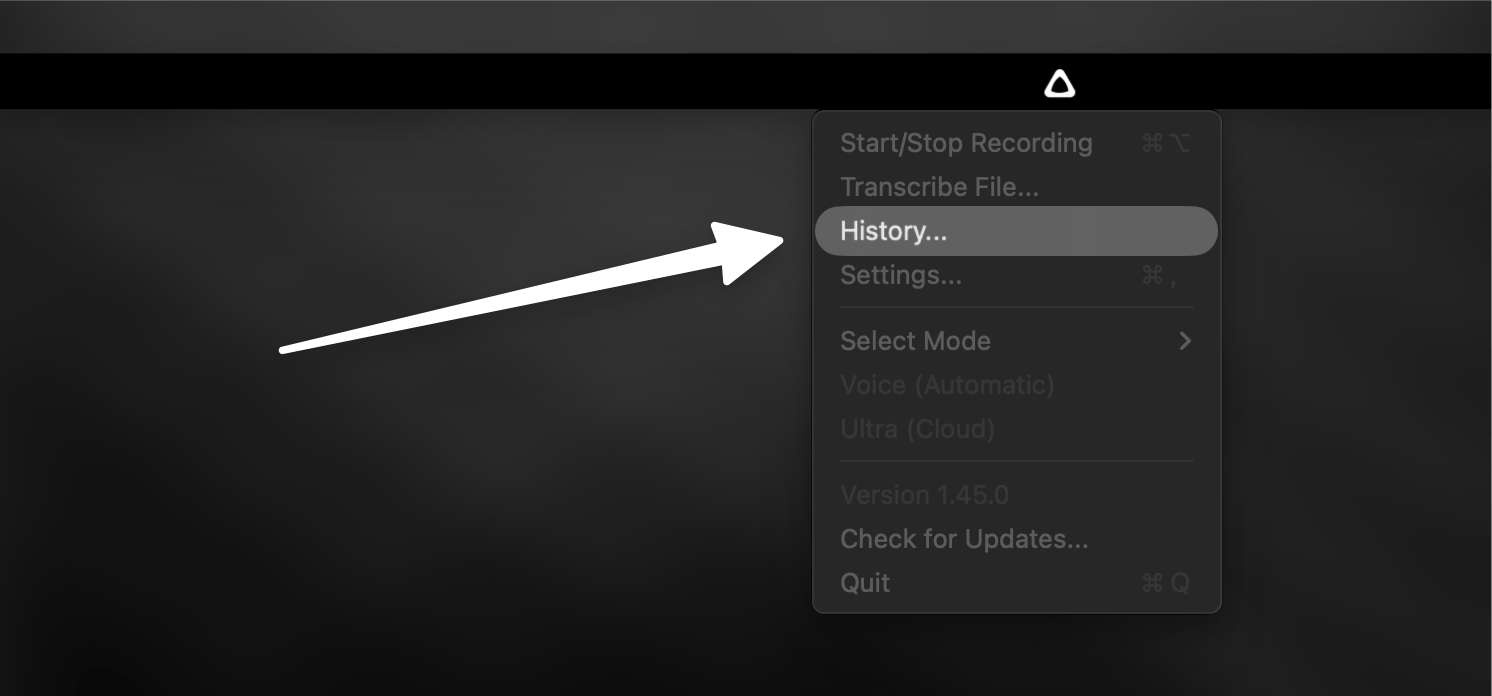
Click the menu icon in Superwhisper and select "History"
## Reporting Through History
The most effective way to report issues related to recordings, is directly through Superwhisper's history.
Click the menu icon in Superwhisper and select "History"
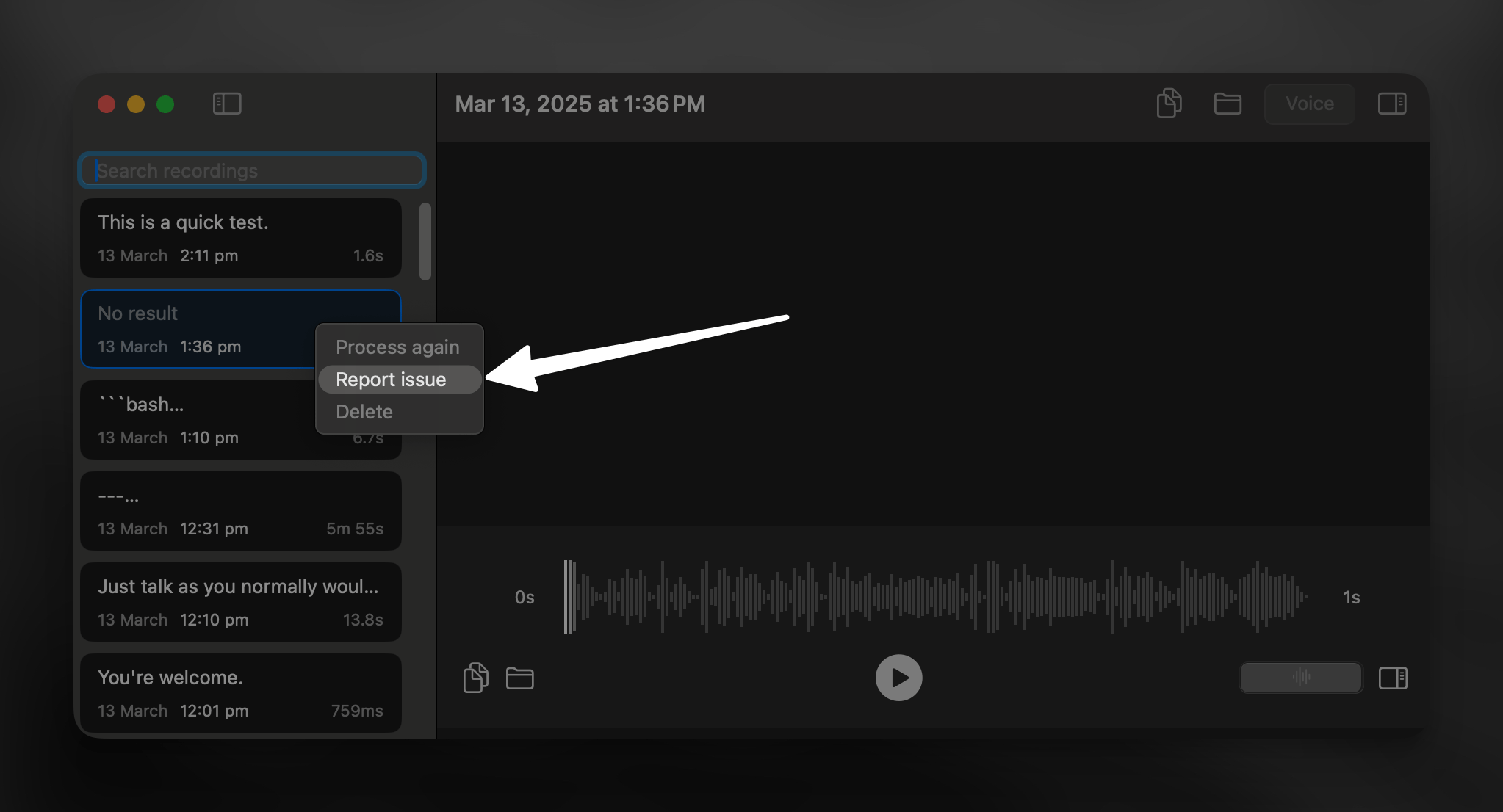
 Find the problematic recording in the left sidebar and right-click to select "Report Issue"
 ## Manual Reporting via Email
As an alternative method you can submit issues manually via email. Here's what to include:
### Required Screenshots
## Manual Reporting via Email
As an alternative method you can submit issues manually via email. Here's what to include:
### Required Screenshots
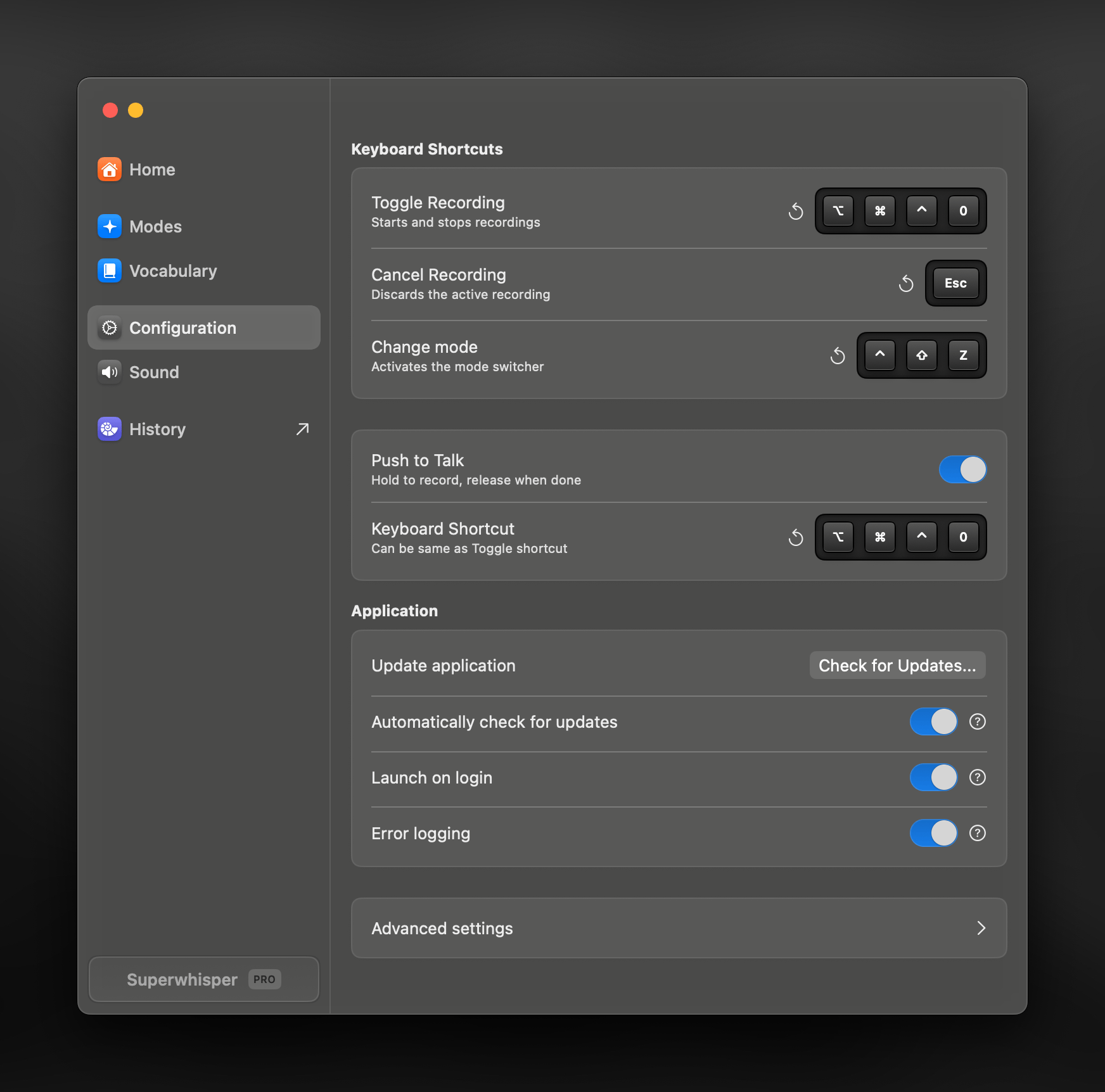
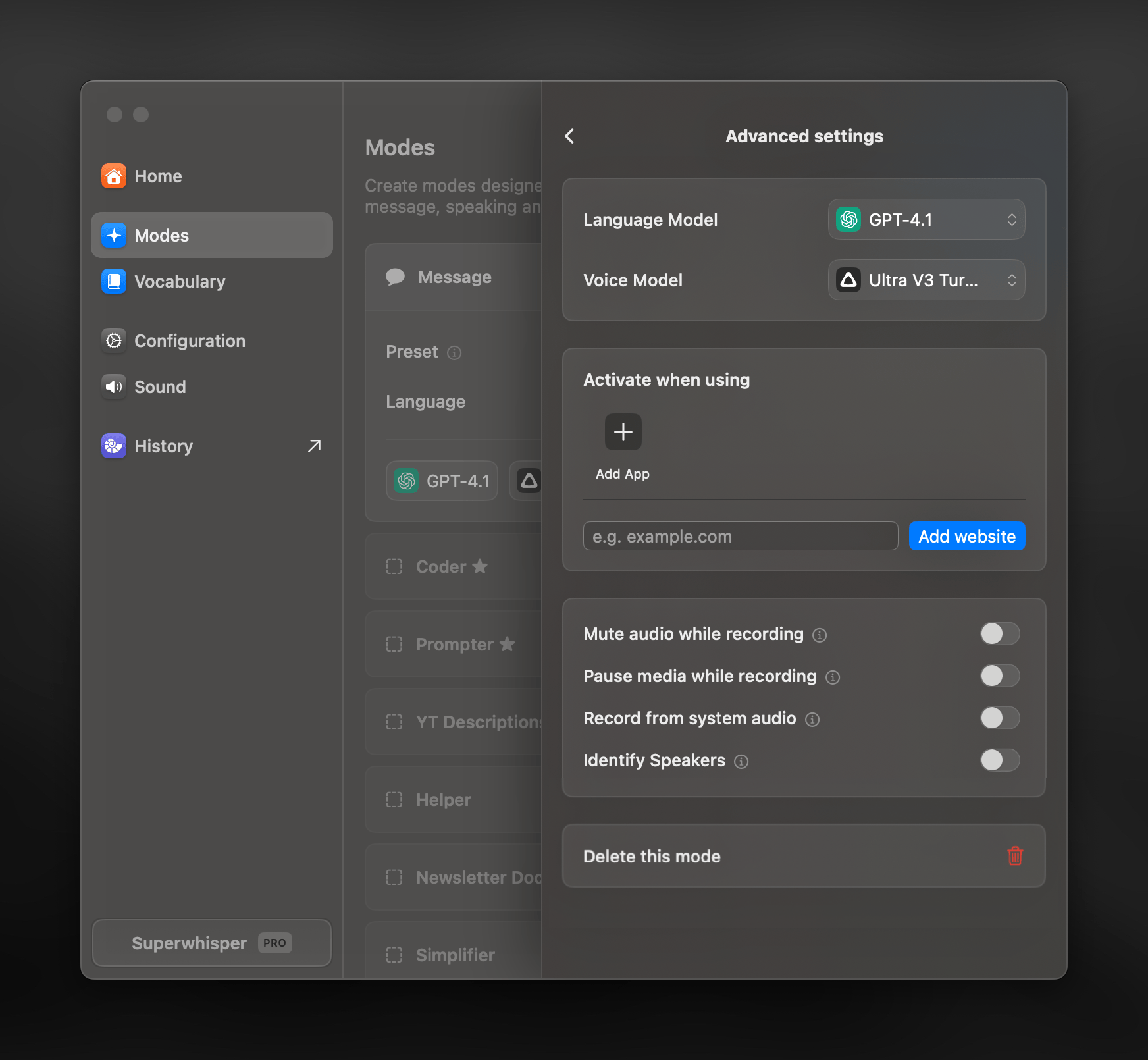 If you're using a Custom Mode, include a screenshot of your prompt configuration
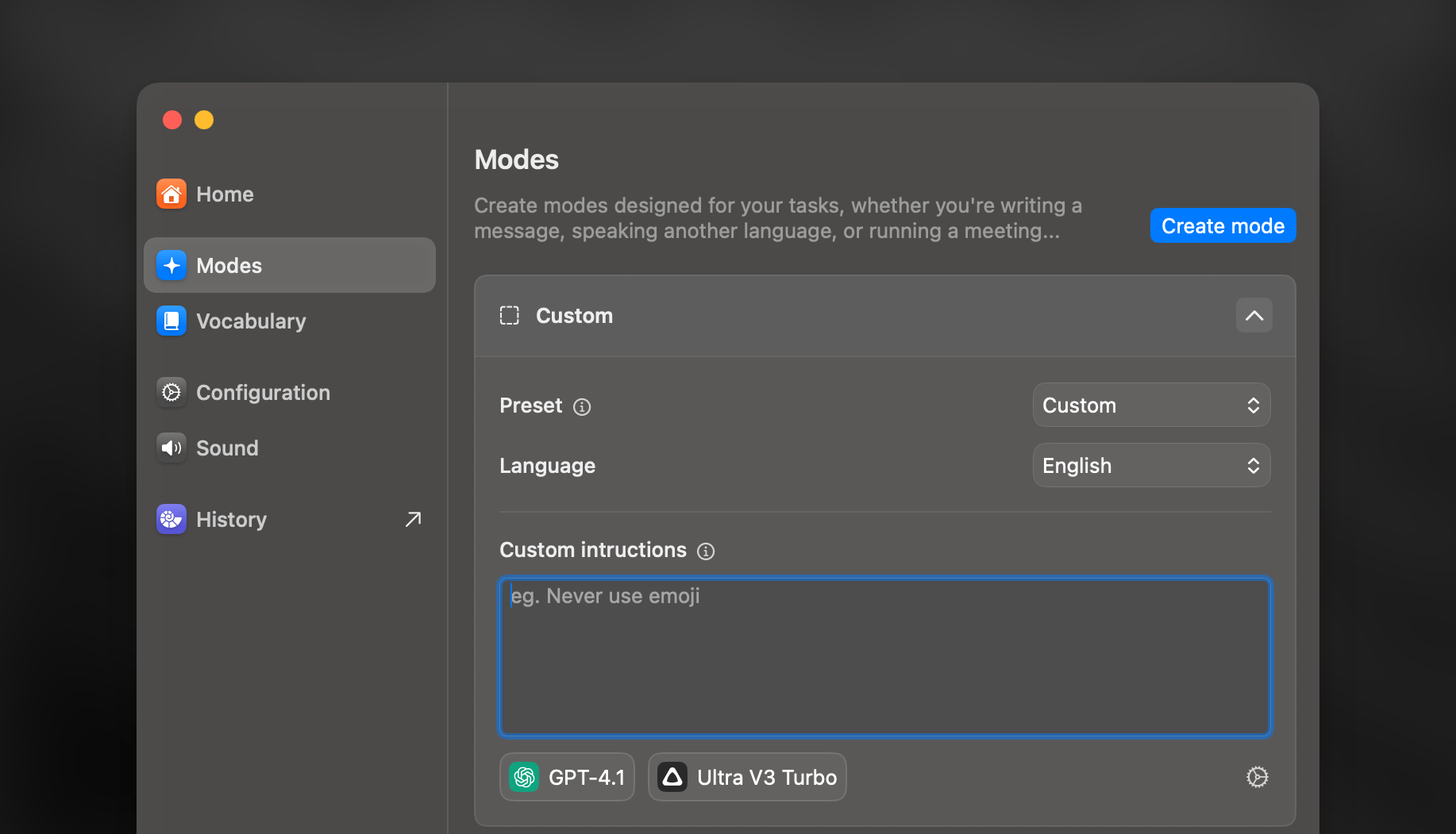 ### Collecting Test Recording Data
Make a brief recording demonstrating the issue
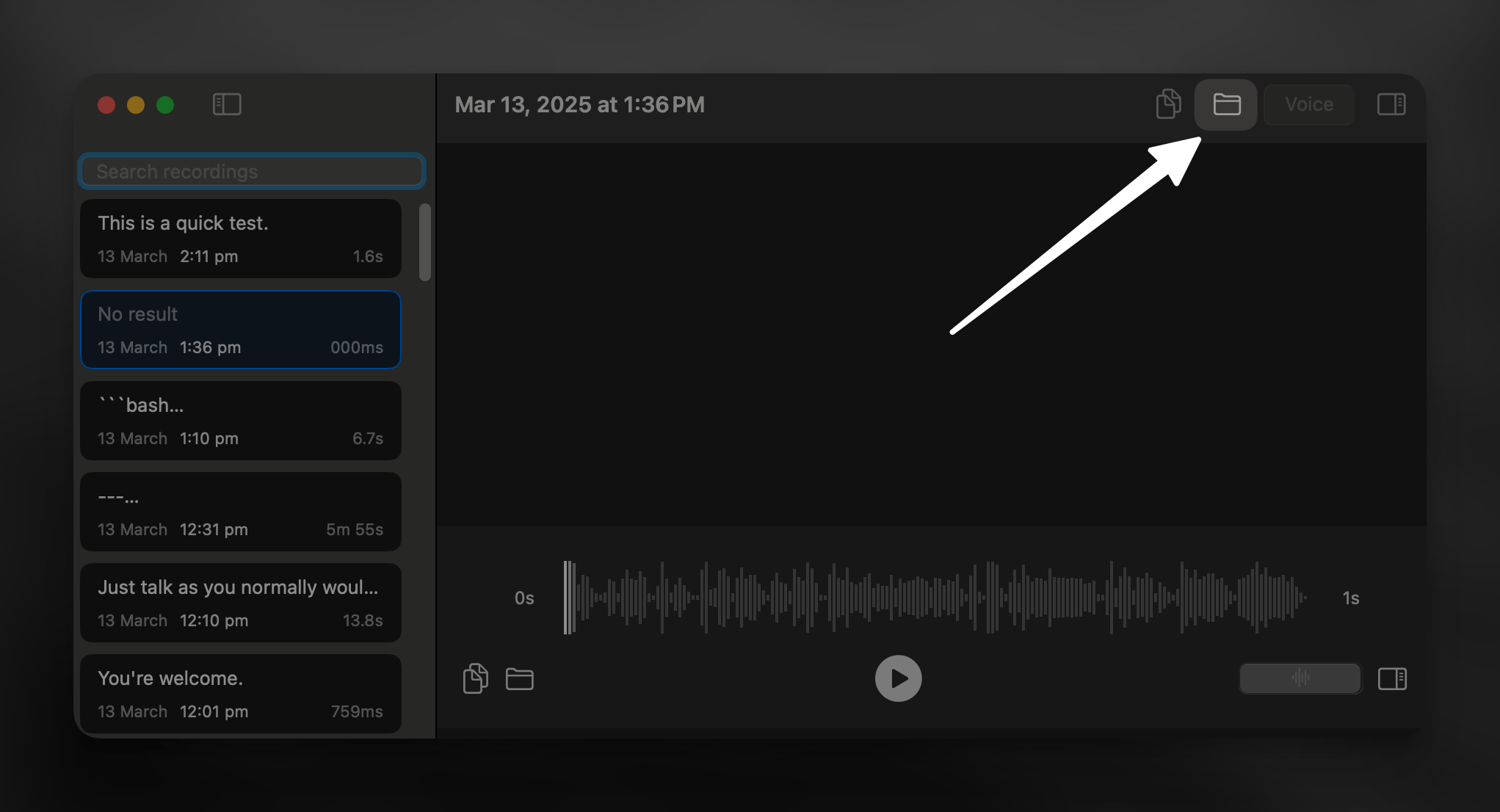
From within the history panel, select the test recording and reveal its folder in Finder
### Collecting Test Recording Data
Make a brief recording demonstrating the issue
From within the history panel, select the test recording and reveal its folder in Finder
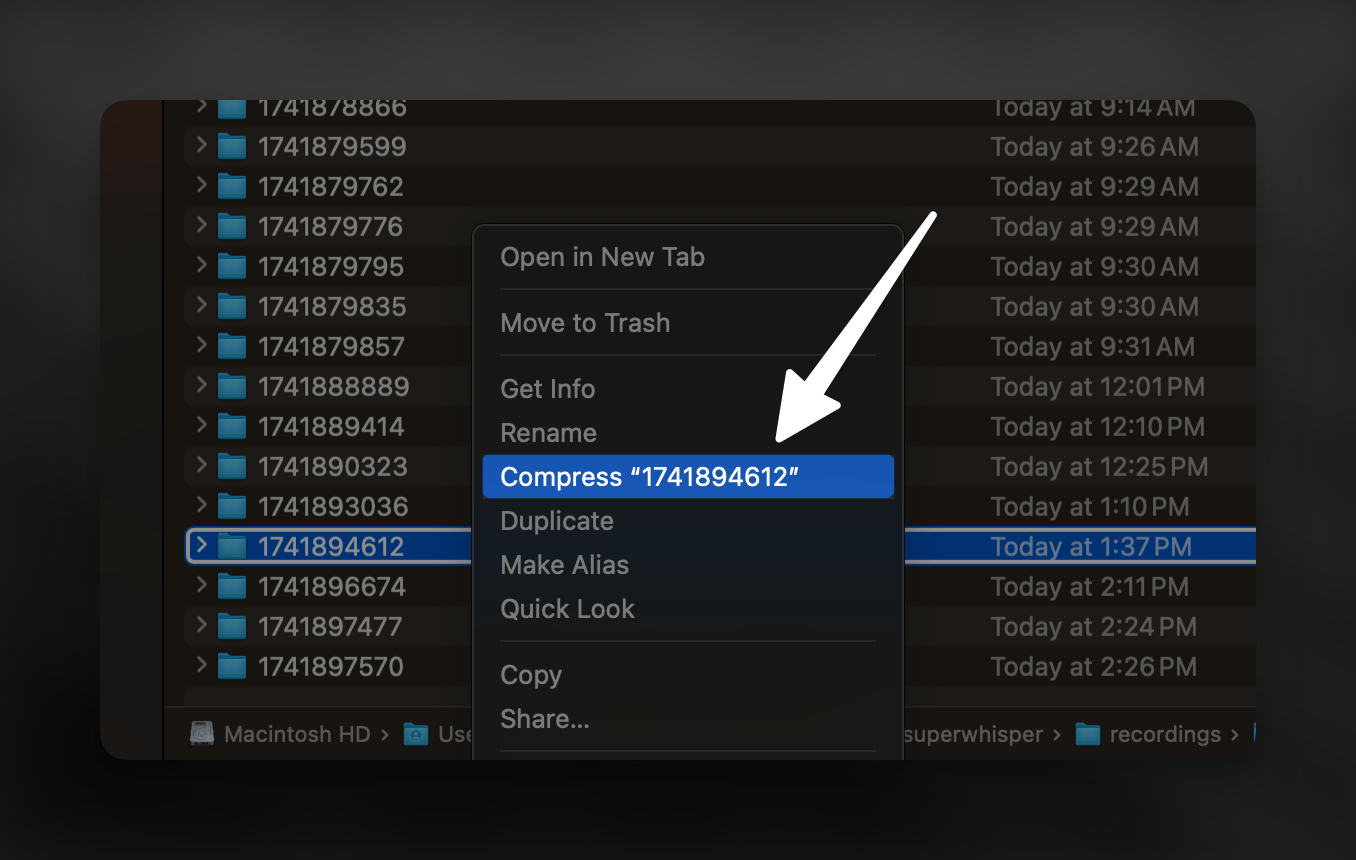
 Compress the selected folder and attach it to your email along with the screenshots
 ***
Whichever method you choose, remember to provide a clear description of the issue and include any steps necessary to reproduce the problem.
***
Whichever method you choose, remember to provide a clear description of the issue and include any steps necessary to reproduce the problem.