

Your Superwhisper Pro license works on all platforms—Mac, Windows, iPhone, and iPad. You don’t need to buy separately.
Step-by-Step (Mac Users)
Download the App
Get Superwhisper for iOS from the App Store.
Access your License Settings
Once installed, open the iOS app and navigate to Settings. Look for the “superwhisper PRO” option, which allows you to activate your license on your mobile device.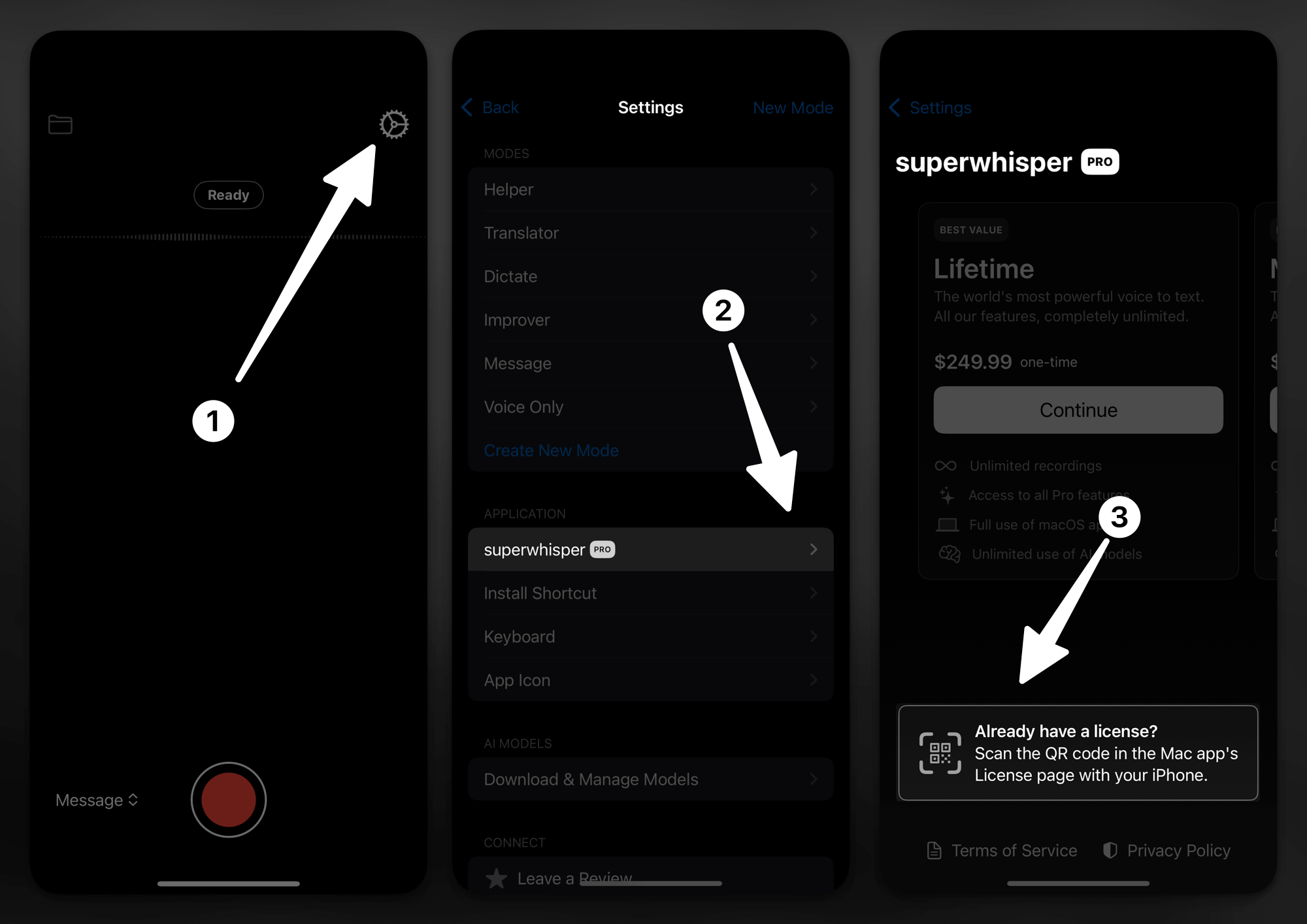
License Activation
To complete activation, you’ll need to scan a QR code from your desktop app: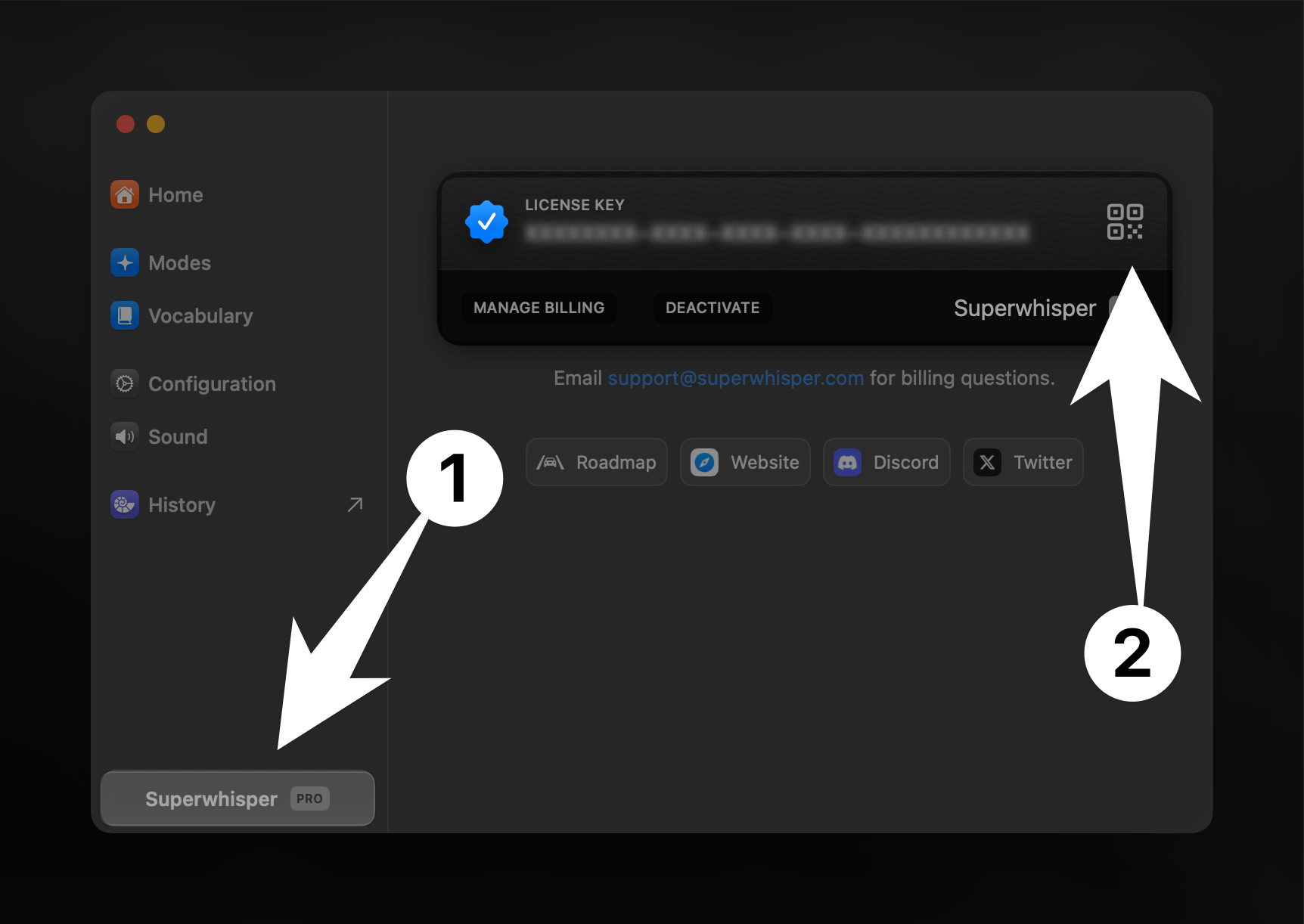
- In the desktop app, open the Settings panel. At the bottom left, click the button labeled “Superwhisper” to view your license details.
- Locate the mobile activation QR code
- Use your iOS device to scan the displayed code
Step-by-Step (Windows Users)
Download the iOS App
Get Superwhisper for iOS from the App Store.
Find Your License Key
Open Superwhisper on your Windows PC and go to Settings to locate your license key.
Troubleshooting
Having trouble with the QR code? Here’s a simple fix:- Open the QR code screen on your Mac
- Double-click your license key (you’ll see “Copied to clipboard”)
- Create the activation link:
- Start with:
superwhisper://license/ - Paste your key after the slash
- Example:
superwhisper://license/XXXXXXXX-XXXX-XXXX-XXXX-XXXXXXXXXXXX
- Start with:
- Open this link on your iOS device
Didn’t Get Your License Key?
If you paid for Superwhisper Pro but didn’t receive a license key:- Check your spam or promotions folder for an email from
superwhisper.com - Confirm the email on your order matches the one you’re checking
- Still nothing? Email support@superwhisper.com with the email or receipt from your purchase and we’ll resend it
App Store Activation
If you bought Superwhisper through the App Store and are experiencing activation issues, follow this guide to help you resolve your problem.